Skip to content

Eternal Center

  • System (系统)
  • Services (服务)
  • Databases (数据库)
  • Clusters (集群)
  • Big Data (大数据)
  • Cloud Computing (云计算)
  • Languages (语言)
  • Project (项目)
  • Writings (写作)
  • Eternity (永恒)
  • News (消息)
  • Chronicle (编年史)
  • Words (言)

Category: System Login Security (系统登录安全)

Posted on July 20, 2020January 25, 2022

[步骤] sudo 提权的实现 (通过用户自己的密码实现 sudo 提权) (openSUSE & SLE)

步骤一:给用户添加相应的 sudo 权限

# vim /etc/sudoers

添加以下内容:

……
zhumingyu ALL=(ALL) /usr/bin/mysql

(补充:这里以给用户 zhumingyu 添加 /usr/bin/mysql 命令为例)

步骤二:设置用户使用自己的密码实现 sudo 提权

# vim /etc/sudoers

将以下内容:

......
#Defaults targetpw   # ask for the password of the target user i.e. root
#ALL    ALL=(ALL) ALL   # WARNING! Only use this together with 'Defaults targetpw'!
......

修改为:

......
Defaults targetpw   # ask for the password of the target user i.e. root
ALL    ALL=(ALL) ALL   # WARNING! Only use this together with 'Defaults targetpw'!
......
Posted on July 20, 2020February 3, 2022

[内容] 日志记录的清除 (last ) (CentOS Linux & RHEL 版)

步骤目录:

步骤一:显示原来的 last 记录

步骤二:清除原来的 last 记录
2.1 确认原有 last 记录的日志文件
2.2 将原有 last 记录的日志文件移走
2.3 创建新的 last 记录的日志文件
2.4 给新创建的 last 记录的日志文件对应的权限

步骤三:显示 last 记录有没有被成功清除

具体的操作步骤:

步骤一:显示原来的 last 记录

# last

步骤二:清除原来的 last 记录
2.1 确认原有 last 记录的日志文件

# ls -arlt /var/log/wtmp
-rw-rw-r--. 1 root utmp 294920 Jul 20 09:57 lastlog

2.2 将原有 last 记录的日志文件移走

# mv /var/log/wtmp /var/log/wtmp.backup

2.3 创建新的 last 记录的日志文件

# touch /var/log/wtmp

2.4 给新创建的 last 记录的日志文件对应的权限

# chown root:utmp /var/log/wtmp

步骤三:显示 last 记录有没有被成功清除

# last

wtmp begins Mon Jul 20 10:07:11 2020

Posted on July 15, 2020December 26, 2021

[工具] Shell 只对某一个 IP 地址开放 TCP 22 端口 (iptables 版)

介绍:

名称:只对某一个 IP 地址开放 TCP 22 端口
作用:只对某一个 IP 地址开放 TCP 22 端口

使用方法:
1. 给此脚本添加执行权限
2. 执行此脚本

脚本分割线里的变量:
ipaddress=192.168.1.1 #要开放 TCP 22 端口的 IP 地址

脚本:

#!/bin/bash

####################### Separator ########################
ipaddress=192.168.1.1
####################### Separator ########################

systemctl stop firewalld
systemctl disable firewalld

yum -y install iptables-services
zypper -n install iptables

systemctl enable iptables
systemctl start iptables

sysctl -w net.ipv4.ip_forward=1
iptables -t filter -F
iptables -t nat -F

iptables -P OUTPUT ACCEPT
#iptables -P INPUT ACCEPT
iptables -P FORWARD ACCEPT

iptables -A INPUT -i lo -j ACCEPT
iptables -A INPUT -m state --state RELATED,ESTABLISHED -j ACCEPT
iptables -A INPUT -s 127.0.0.1 -d 127.0.0.1 -j ACCEPT

iptables -t filter -A INPUT -j ACCEPT -s $ipaddress -p tcp --destination-port 22
iptables -t filter -A INPUT -j DROP -p tcp --destination-port 22

service iptables save
systemctl restart iptables
Posted on June 7, 2020April 28, 2022

[步骤] Linux root 系统用户密码的破解

步骤目录:

步骤一:进入内核编辑界面

步骤二:修改内核参数

步骤三:进入修改后的内核

步骤四:修改 root 密码
4.1 重新挂载 sysroot 目录并给予读写权限
4.2 确认 sysroot 已经挂载
4.3 将当前根目录切换为 /sysroot
4.3 修改 root 密码
4.4 创建修改标签
4.5 同步
4.6 退出将 /sysroot 目录视为根目录
4.7 重启系统

具体的操作步骤:

步骤一:进入内核编辑界面

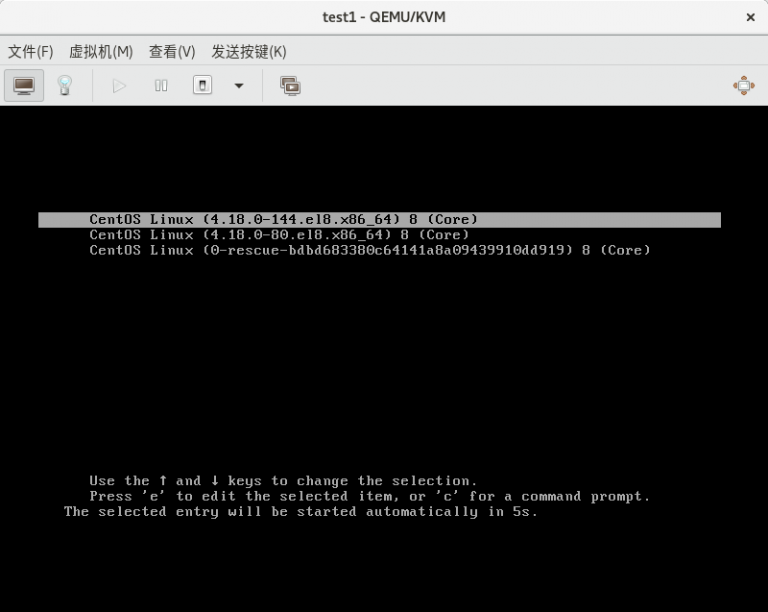
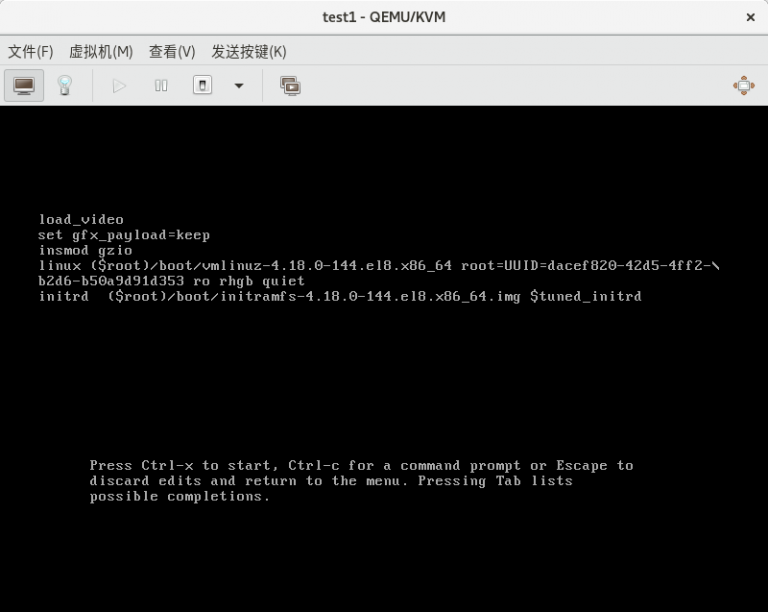
重启系统,进入内核选择界面,此时按下 “e” 键进入内核编辑界面

内核选择界面
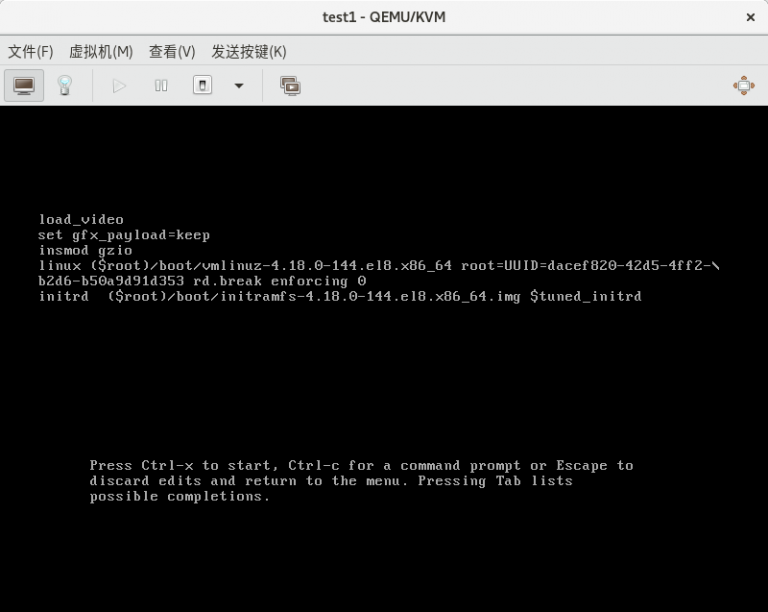
内核编辑界面

步骤二:修改内核参数

在 linux 开头的这 1 行将 “ro rhgb quiet” 对应位置的参数修改为 “rd.break enforcing=0”

或者:

这一步也可以换成直接在 linux 开头的这 1 行末尾添加 “rd.break console=tty0”

修改了内核参数后的内核编辑界面

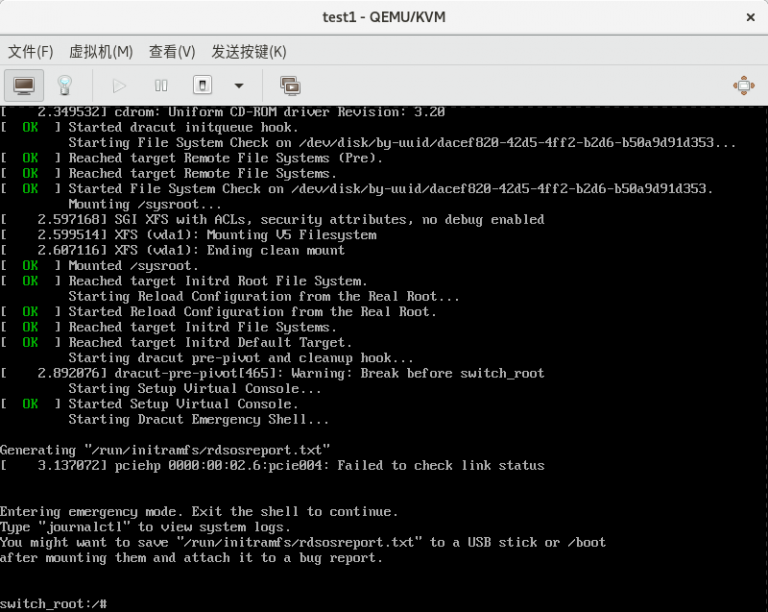
步骤三:进入修改后的内核

同时按下 “ctrl” 键和 “x” 键

修改后的内核命令行界面

步骤四:修改 root 密码
4.1 重新挂载 sysroot 目录并给予读写权限

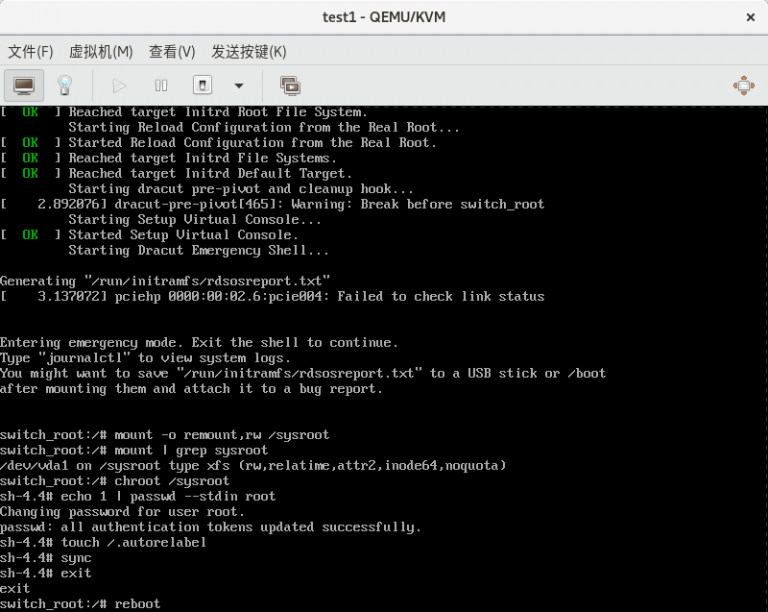
switch_root:/# mount -o remount,rw /sysroot

4.2 确认 sysroot 已经挂载

switch_root:/# mount | grep sysroot

4.3 将当前根目录切换为 /sysroot

switch_root:/# chroot /sysroot

4.3 修改 root 密码

sh-4.4# echo 1 | passwd --stdin root

(补充:以上命令的作用是在修改的内核中,将 root 的密码修改为 1,并重启)

4.4 创建修改标签

sh-4.4# touch /.autorelabel

4.5 同步

sh-4.4# sync

4.6 退出将 /sysroot 目录视为根目录

sh-4.4# exit

4.7 重启系统

switch_root:/# reboot
键入命令时的情况
Posted on June 6, 2020January 2, 2022

[步骤] CentOS Linux & RHEL 网页图形化管理工具 cockpit

步骤一:系统环境要求

服务器系统配置好可用的软件源

步骤二:安装 cockpit

# yum -y install cockpit cockpit-dashaboard

(补充:cockpit 是管理单台主机的程序,cockpit-dashaboard 是管理多台主机的程序)

步骤三:启动 cockpit

# systemctl start cockpit

步骤四:登录 cockpit

使用浏览器登录:https://<服务器的 IP 地址>:9090

Posts navigation

Previous page Page 1 … Page 6 Page 7 Page 8 … Page 11 Next page

Aspiration (愿景):

Everyone can achieve self achievement and self happiness fairly

每个人都能公平地实现自我成就和自我幸福

Position (位置):

Running on Evolution Host and DigitalOcean

正在 Evolution Host 和 DigitalOcean 上运行

Logo (徽标):

Additional Information (其他信息):

About Manual Clone Contact Disclaimer Donation Friendly Links 关于 说明书 克隆 联系 免责申明 捐赠 友情链接

Standby IP Address (备用 IP 地址):

152.69.204.95  150.230.63.10  Please configure before use / 请先配置再使用

Search Outside Website (站外搜索):

Google Wikipedia Bing
Proudly powered by LNMP Proudly powered by WordPress